
Development Tools: WebStorm, Visual Studio Code and OpenCode
Choosing the right tools for modern frontend development with Angular, NX and beyond.
Introduction
When developing frontend applications, the choice of tools affects more than an individual developer’s comfort. It also influences team conventions, development environment setup, version control integration, automation, and the use of AI tools.
This article compares three options for working with TypeScript, Angular, and NX:
- WebStorm — a full-featured integrated development environment (IDE).
- Visual Studio Code — an extensible code editor.
- OpenCode — an open-source AI coding agent designed to assist with software development.
These tools solve overlapping but different problems. WebStorm and Visual Studio Code provide the primary environment for working with code, while OpenCode focuses on interacting with a codebase through an AI agent. They should therefore not always be treated as directly interchangeable alternatives.
The goal is to help you choose a suitable development tool without making a particular editor a prerequisite for learning NX.
1. WebStorm: A Full-Featured IDE
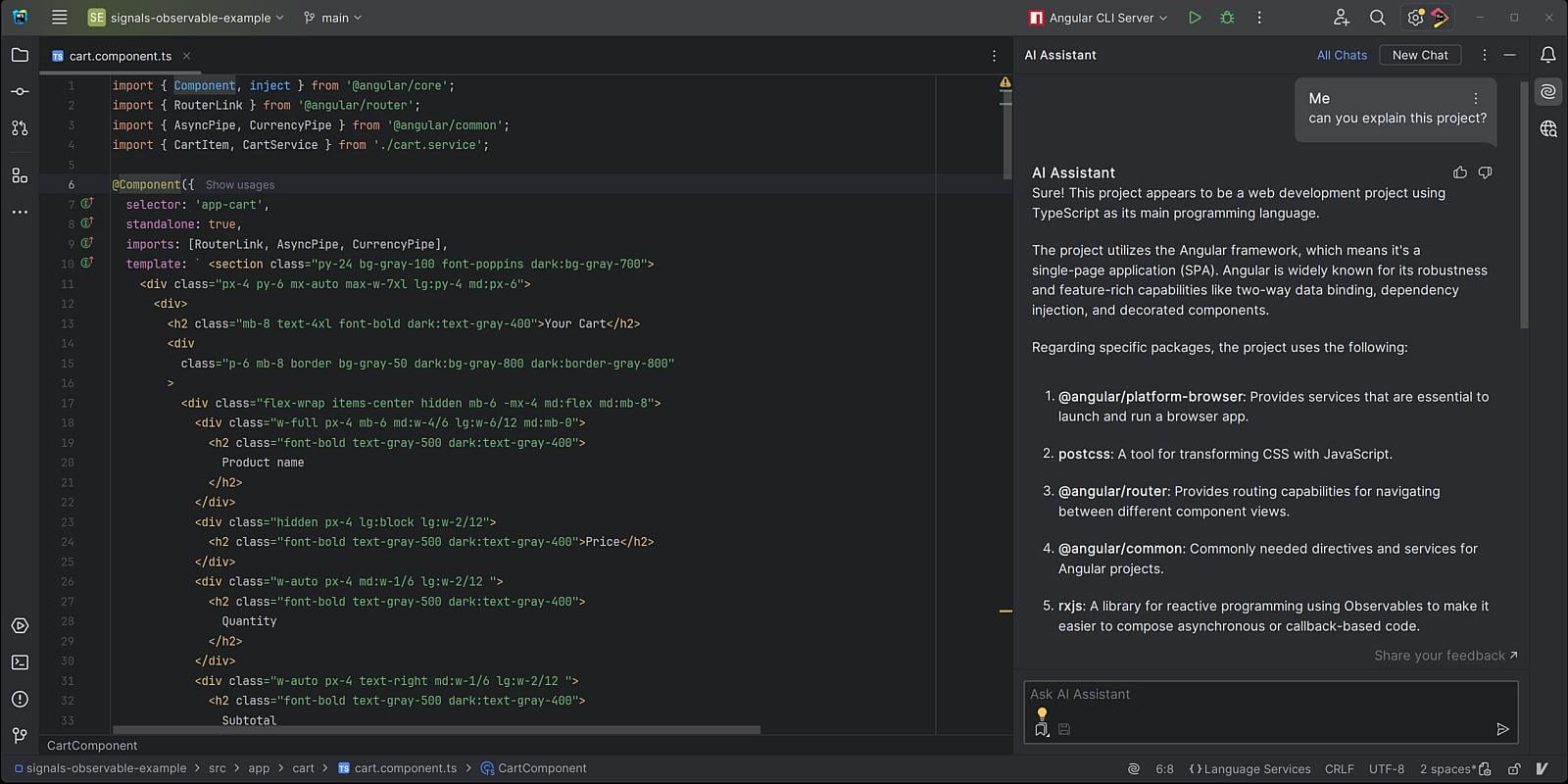
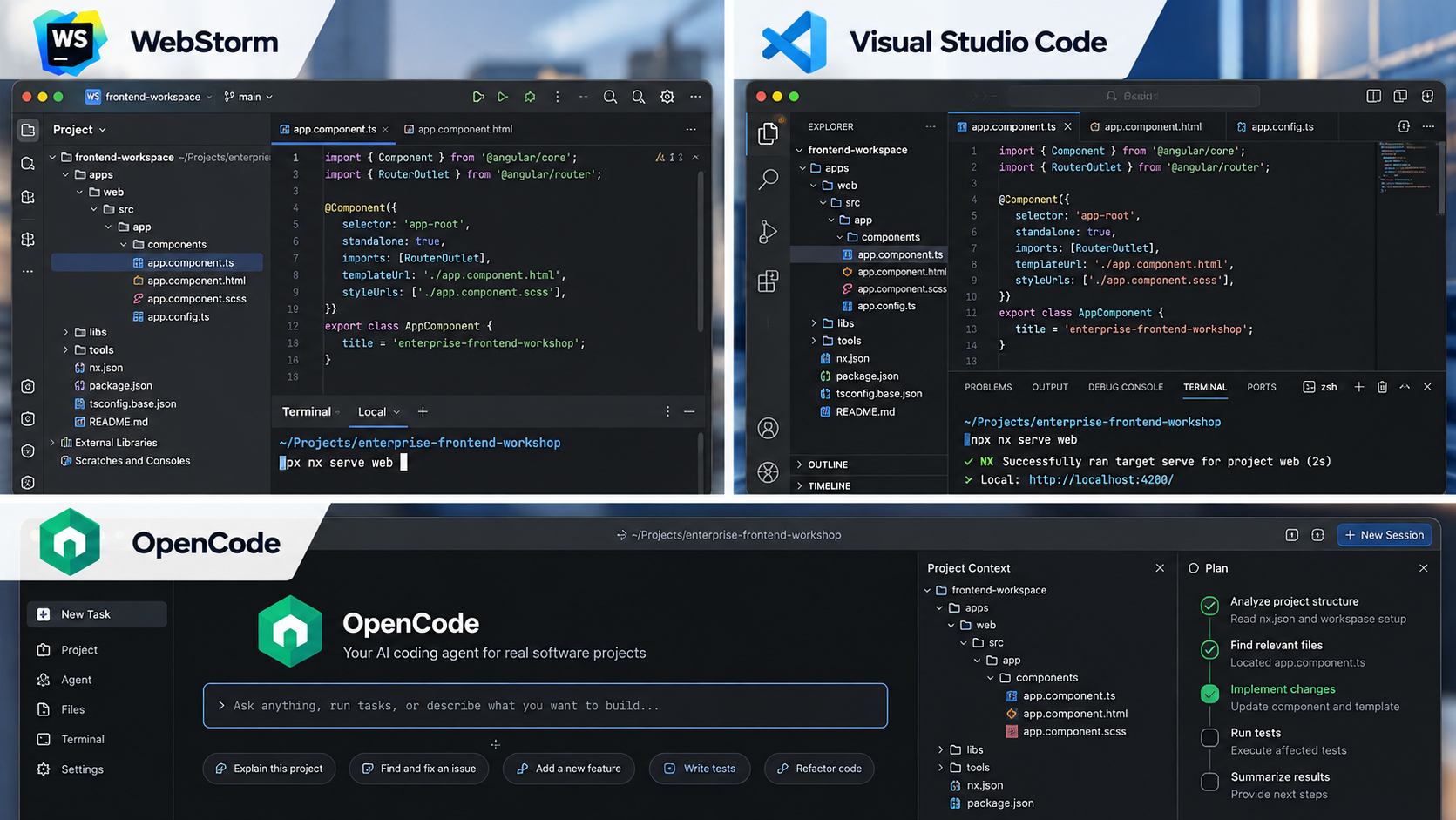
WebStorm is an integrated development environment from JetBrains, focused on JavaScript, TypeScript, and modern frontend technologies.
Unlike a minimalist editor, an IDE aims to provide a cohesive set of tools within a single working environment. These include project navigation, code analysis, refactoring, version control support, run configurations, and integration with development tools.
Advantages
Deep project understanding. The IDE analyses project structure, relationships between files, imports, and types. This helps developers navigate to definitions, find symbol usages, and refactor code with context in mind.
TypeScript and frontend support. WebStorm provides tools for JavaScript, TypeScript, HTML, CSS, and related technologies. For Angular and other frontend projects, code navigation, type analysis, and integration with familiar development tools are particularly useful.
Git integration. Reviewing changes and diffs, working with branches, and resolving conflicts are available within the IDE.
A unified working environment. Many features are available without having to select and coordinate a large collection of extensions yourself.
Support for large projects. Analysis, search, and refactoring tools can be especially valuable in large codebases, where changing one element may affect several modules.
Limitations
The main drawback is its commercial licensing model. Before choosing WebStorm, check the current licence terms and available usage options.
A full-featured IDE may also consume significant system resources. Some capabilities may be unnecessary for smaller projects or developers who prefer a minimalist environment.
WebStorm does not eliminate the need to understand the technologies being used. Automation makes navigating and modifying code easier, but it does not replace architectural decisions or result verification.
When to choose WebStorm
Consider WebStorm if:
- You regularly work with large TypeScript projects.
- Advanced navigation and refactoring capabilities are important.
- You prefer an integrated environment with a ready-made set of tools.
- The licence cost is acceptable for personal or corporate use.
Official website: https://www.jetbrains.com/webstorm/
2. Visual Studio Code: An Extensible Editor
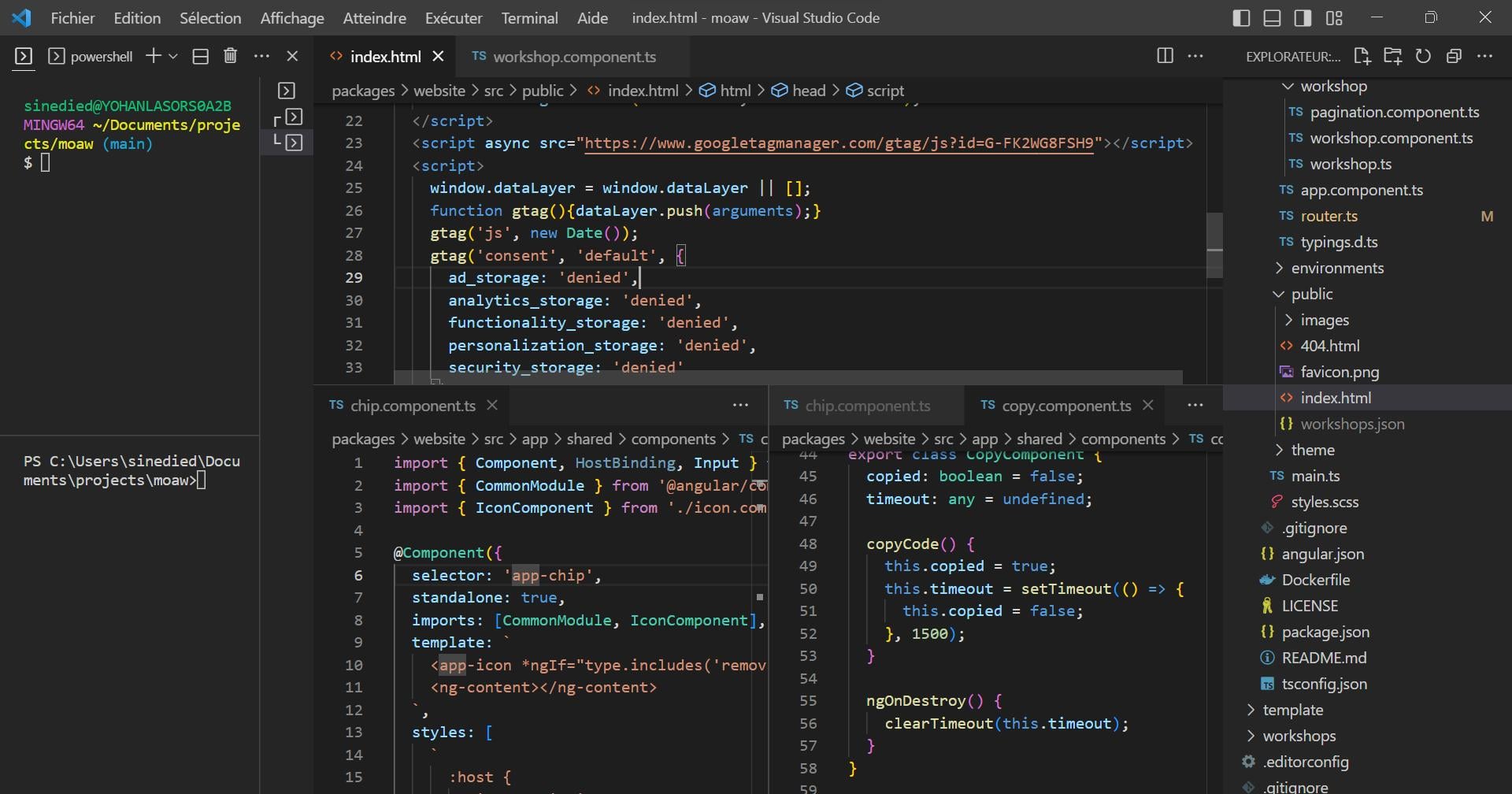
Visual Studio Code (VS Code) is a code editor from Microsoft. It provides core development capabilities that can be extended through its extension system.
VS Code is often chosen for its flexibility, accessibility, and ability to tailor the working environment to a specific project.
Advantages
Accessibility. VS Code is distributed free of charge. However, the terms for the editor itself should be considered separately from those of individual extensions or connected services.
Extensibility. Capabilities can be added gradually, including Angular support, additional TypeScript tools, Git integration, formatting, linting, and tools for AI-assisted development.
Terminal integration. The integrated terminal allows developers to run npm, NX CLI, Git, and other commands without constantly switching applications.
Flexible configuration. A team can agree on a set of extensions, formatting settings, editor rules, and other project-specific options.
Wide adoption. Many frontend developers are already familiar with VS Code, making it a convenient option for teams with different levels of experience and preferences.
Limitations
Flexibility comes with a trade-off: the working environment must be configured and maintained.
If developers use different extensions and settings, formatting, diagnostics, and automation results may vary. Not every extension is equally well maintained, and a large number of additions can make troubleshooting more difficult.
An extension also does not guarantee that all its features are free or that a connected service is available in every region or corporate network.
When to choose Visual Studio Code
Consider VS Code if:
- You need a free editor with broad capabilities.
- You want to configure your own development environment.
- Your team uses command-line tools and project configuration files.
- You need to align the editor with existing development processes.
- You prefer to choose AI tools separately from your primary development environment.
Official website: https://code.visualstudio.com/
3. OpenCode: An AI Agent for Working with Code
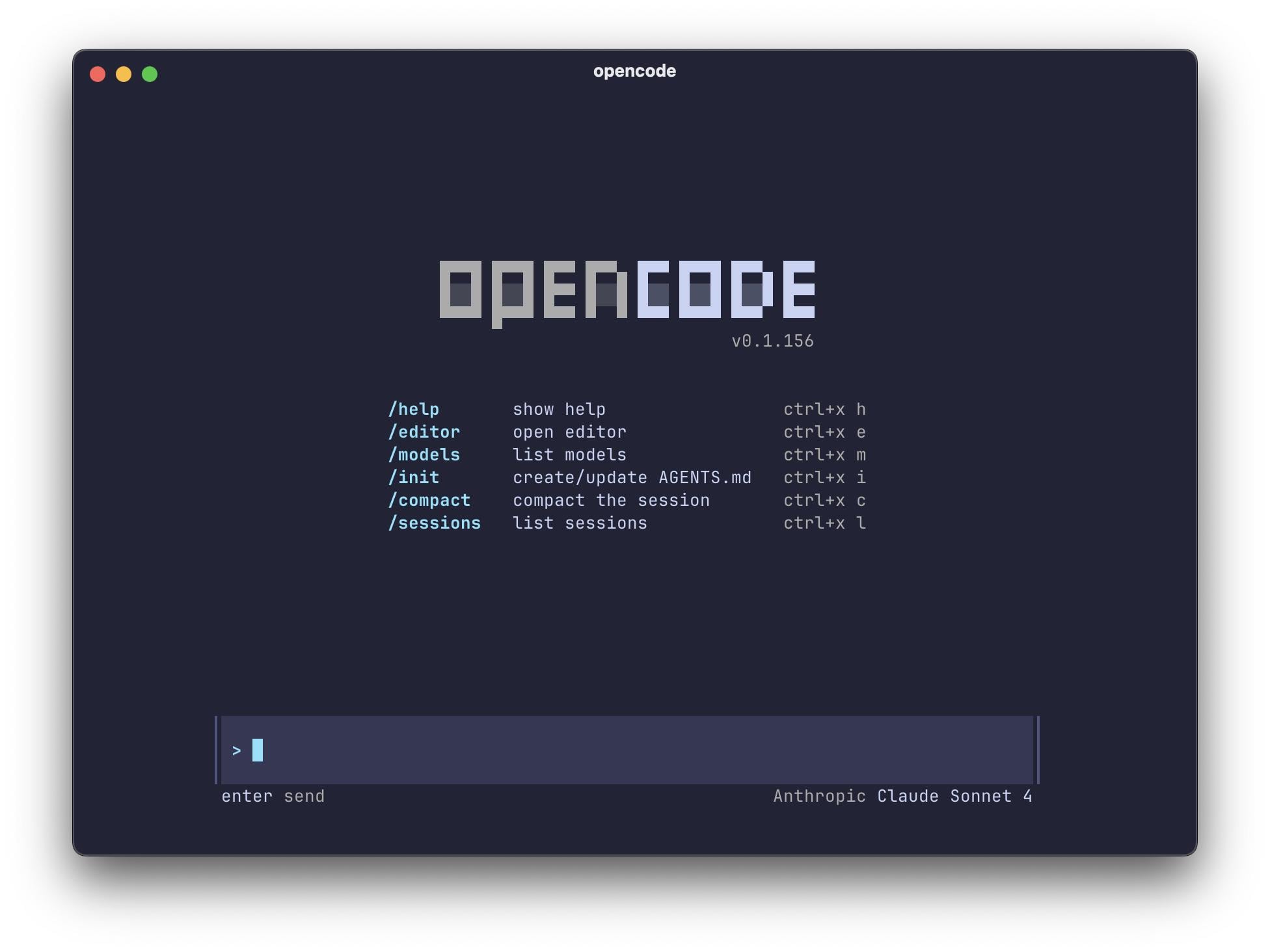
OpenCode is an open-source AI coding agent designed to assist with software development tasks.
Its primary role differs from that of a traditional editor or IDE. Rather than only providing an interface for manually working with files, an AI agent can analyse project context, help break down a task, suggest changes, and perform permitted actions within its workflow.
OpenCode can be used through a terminal, a standalone application, or integrations with editors and IDEs. The available ways of working depend on the current version of the tool.
Advantages
Task context. You can ask the agent to investigate existing code, explain the project structure, suggest a change plan, or prepare an implementation of a particular feature.
Help with repetitive tasks. An AI agent can assist with writing tests, preparing documentation, investigating errors, and performing focused refactoring.
Integration with an existing environment. OpenCode does not have to replace your primary editor. It can be treated as an additional tool within an established development workflow.
Open source. The ability to inspect and review the tool’s source code may be important when evaluating it and deciding how to use it.
Flexibility in AI infrastructure. Model and provider integrations depend on the current configuration and supported integrations. Check the available options, costs, and restrictions before using them.
Limitations
OpenCode should not automatically be treated as a complete replacement for an IDE. Manual navigation, visual editing, debugging, and other familiar operations depend on the editor or application with which it is used.
Open source does not mean every AI capability is free. Connecting to models may require paid access through a provider or the use of your own infrastructure.
The availability of specific models and providers may depend on the region, network restrictions, and corporate policies.
Finally, an AI agent may suggest an incorrect solution, modify the wrong files, or misunderstand requirements. Generated code must be reviewed, and changes should be checked using diffs, tests, and other quality checks.
When working with corporate repositories, security rules matter: determine which data may be sent to external services, which tools can execute commands, and which actions require developer confirmation.
When to choose OpenCode
Consider OpenCode if:
- You want to explore AI-assisted development in practice.
- You need to delegate limited code analysis or modification tasks to an agent.
- You want to use an AI agent independently of a specific editor.
- Your team is prepared to review the agent’s output and control its permissions.
- You want to evaluate alternative ways of integrating AI into your workflow.
Official website: https://opencode.ai/
4. Comparing the Tools
| Criterion | WebStorm | Visual Studio Code | OpenCode |
|---|---|---|---|
| Primary purpose | Full-featured IDE | Extensible editor | AI coding agent |
| Usage model | Integrated environment | Editor with extensions | Agent-based workflow |
| TypeScript work | Built-in IDE tools | Core capabilities and extensions | AI-assisted code analysis and modification |
| Git integration | Integrated interface | Editor and extension integration | Depends on the workflow and available tools |
| Terminal commands | Supported | Integrated terminal | One of the primary interaction methods |
| Configuration | Many capabilities built in | Highly flexible | Depends on configuration and connected providers |
| Licensing and cost | Commercial licence; verify current terms | Editor is free; individual services may have their own terms | Open-source tool; model usage may incur costs |
| Main trade-off | Cost and resource consumption | Need to select and maintain the environment | Need to verify the agent’s output |
The table shows that the tools differ primarily in their roles. WebStorm and VS Code serve as the main working environment for a project, while OpenCode adds an AI-oriented way to perform engineering tasks.
In some scenarios, they do not compete directly: a developer can use VS Code or WebStorm together with OpenCode.
5. Choosing Tools for NX and Angular
When working with NX, it is important to distinguish editing tools from the project’s own tooling.
NX provides its own system for managing workspaces and tasks. Commands for running, building, testing, and other operations are executed through the NX CLI and project configuration. These mechanisms are not exclusive to WebStorm or VS Code.
For example, a developer can open the same NX workspace in different editors, run commands through a terminal, and use Git to track changes. The convenience of integration may differ, but the workspace architecture should not depend on an editor preference.
A starting point could be:
- WebStorm — if you want a full-featured IDE with advanced navigation and refactoring.
- Visual Studio Code — if accessibility, flexible configuration, and an extensible environment are important.
- OpenCode — if you want to complement your existing development process with an AI agent.
If you are just beginning to learn NX, it makes sense to start with the basic commands and workspace structure. This helps you understand what happens when a task runs, regardless of the editor you use.
An AI agent can help investigate NX configuration or prepare changes, but its recommendations should be checked just like changes proposed by a person.
6. Practical Recommendations for Teams
Choosing an editor is an individual decision, but teamwork requires shared conventions.
Agree on code quality
Formatting, linting, testing, and builds should rely primarily on project configuration and automated checks rather than individual developer settings.
Do not tie documentation to a single editor
If the team uses NX CLI and standard project commands, the instructions remain applicable to developers using different tools.
Control changes
Use Git, review diffs, and run the checks required by the project. This is particularly important when using AI agents that can modify multiple files as part of one task.
Define AI usage rules
Before connecting AI tools, agree on requirements for confidentiality, source-code access, command execution, and result verification.
Choose tools for the task
There is no need to require every developer to use the same editor if the differences do not hinder collaboration. Consistent project rules, reproducible commands, and verifiable quality are far more important.
Conclusion
WebStorm, Visual Studio Code, and OpenCode represent different approaches to development.
WebStorm provides an integrated IDE, Visual Studio Code offers a flexible and extensible environment, and OpenCode is an AI agent for carrying out engineering tasks with the help of models.
There is no universal winner. The choice depends on the work involved, budget, developer preferences, corporate restrictions, and requirements for AI tools.
For the Enterprise Frontend Workshop, the main principle remains unchanged: technical instructions should explain how the project works, not require a particular editor.
By learning NX CLI, workspace structure, task configuration, and basic Git practices, developers can apply what they learn in their preferred working environment.
Official Documentation
- WebStorm
- WebStorm documentation
- Visual Studio Code
- Visual Studio Code documentation
- OpenCode
- NX documentation
__
About the author
- Lead Software Architect focused on Enterprise Frontend Architecture, Angular, NX, Domain-Driven Design, and maintainable software systems. Exploring practical approaches to AI-assisted engineering with Claude and GitHub Copilot.
Comments
Join the discussionNo comments yet. Be the first to comment.
Architecture in Practice: Decisions Behind Enterprise Frontend Systems
Explore the architectural decisions behind enterprise frontend systems through practical examples, an evolving Angular and NX workspace, and discussions of structure, dependencies, and maintainability.